User Guide
Early Access. Last updated 14 October 2026. Everything below works without an account and without internet. Sign in only when you want your work on more than one device. The screenshots use the demo workspace, which you can load yourself in one tap.
What you get
- One place for your whole prep. Timetable, notes, revision cards, past papers, exams and an AI coach, instead of five apps and a notebook.
- It tells you what to do next. Open it in the morning and the dashboard lists today’s most useful tasks, ranked by what is overdue, what is due soon and which exam is closest.
- It stops you forgetting. Revision cards come back on a spaced schedule, just before you would lose them.
- It works in a dead zone. Your data lives on your device first, so no signal never means no studying.
- It is free and you can take your data away or delete it any time.
Start in two minutes
- Open planner.msrx.co.in on your phone or computer. Nothing to install.
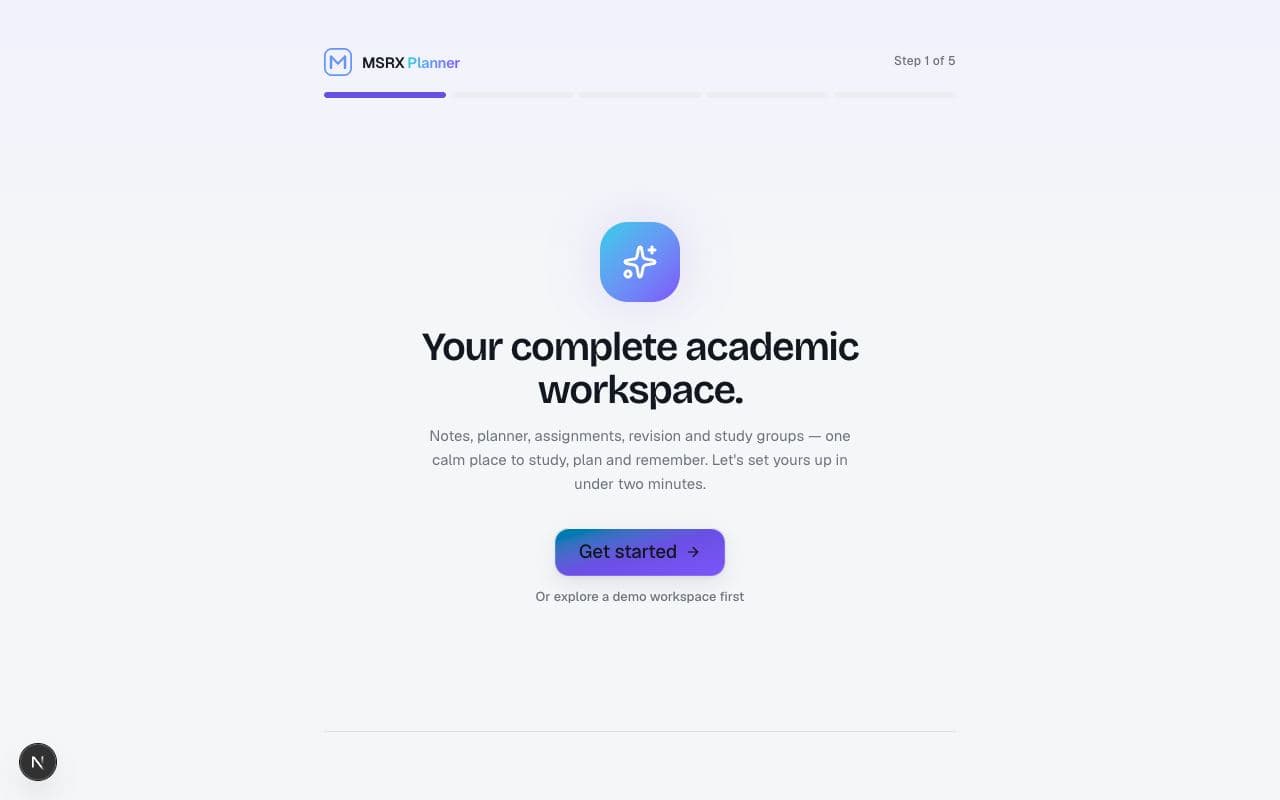
- Tap “Get started”. A short setup asks your goal (JEE, NEET, boards or college), a theme and an accent colour. It builds your first workspace from a real template with starter subjects.
- Just looking? Tap “Or explore a demo workspace first” to load a realistic sample you can poke at, then reset it whenever you like.
- Optional: create an account with Google or email so your work follows you across devices.
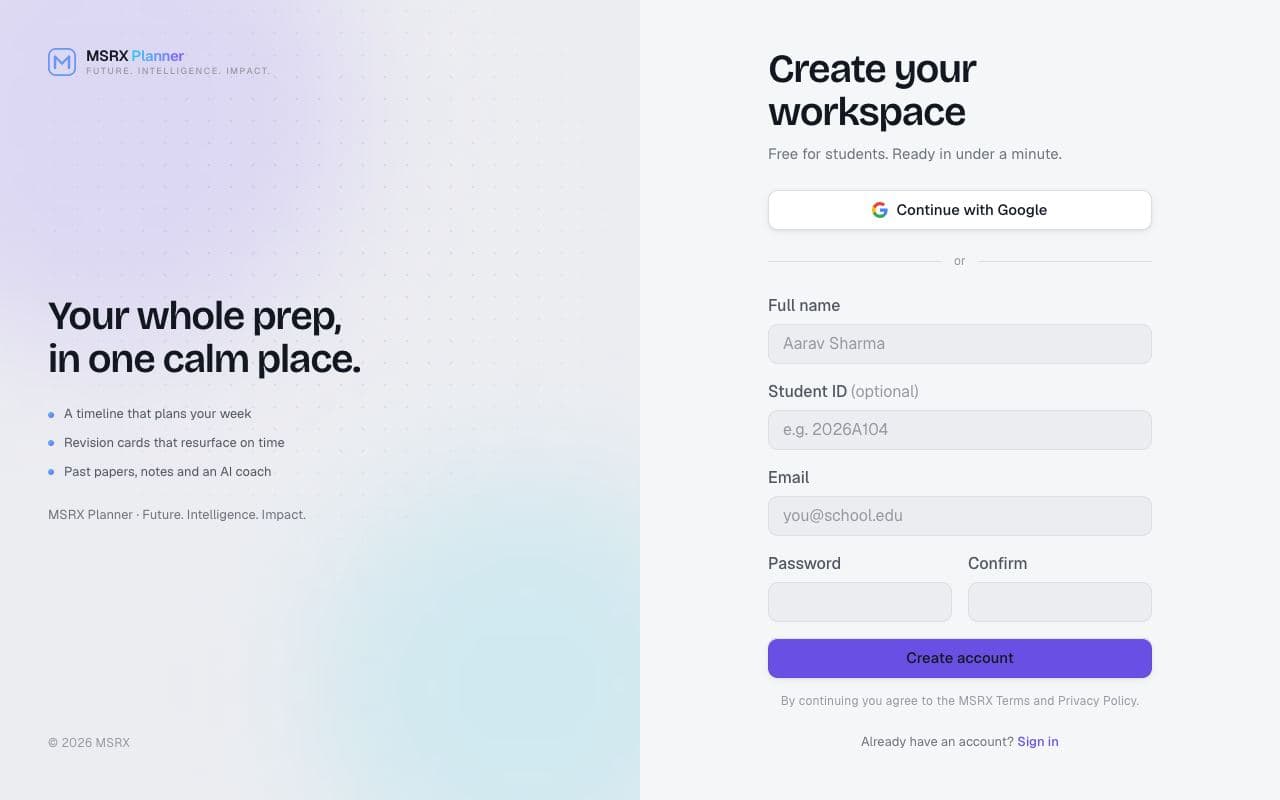
Under 18? Ask a parent or guardian before you make an account. See the Privacy Policy.
Your daily routine (five minutes)
- Dashboard. Read “Today’s Mission” and pick the top task.
- Planner. Start a session on that task and work until it ends.
- Revision. Clear the cards that are due, usually a few minutes.
- Done. Close the app. Tomorrow it will be ready.
Dashboard: what to do now
The dashboard turns your assignments, exams and revision cards into a short ranked list. Each line says why it is there (overdue by a day, exam in seven days, cards due) and how long it should take. Tap a line to open the work.
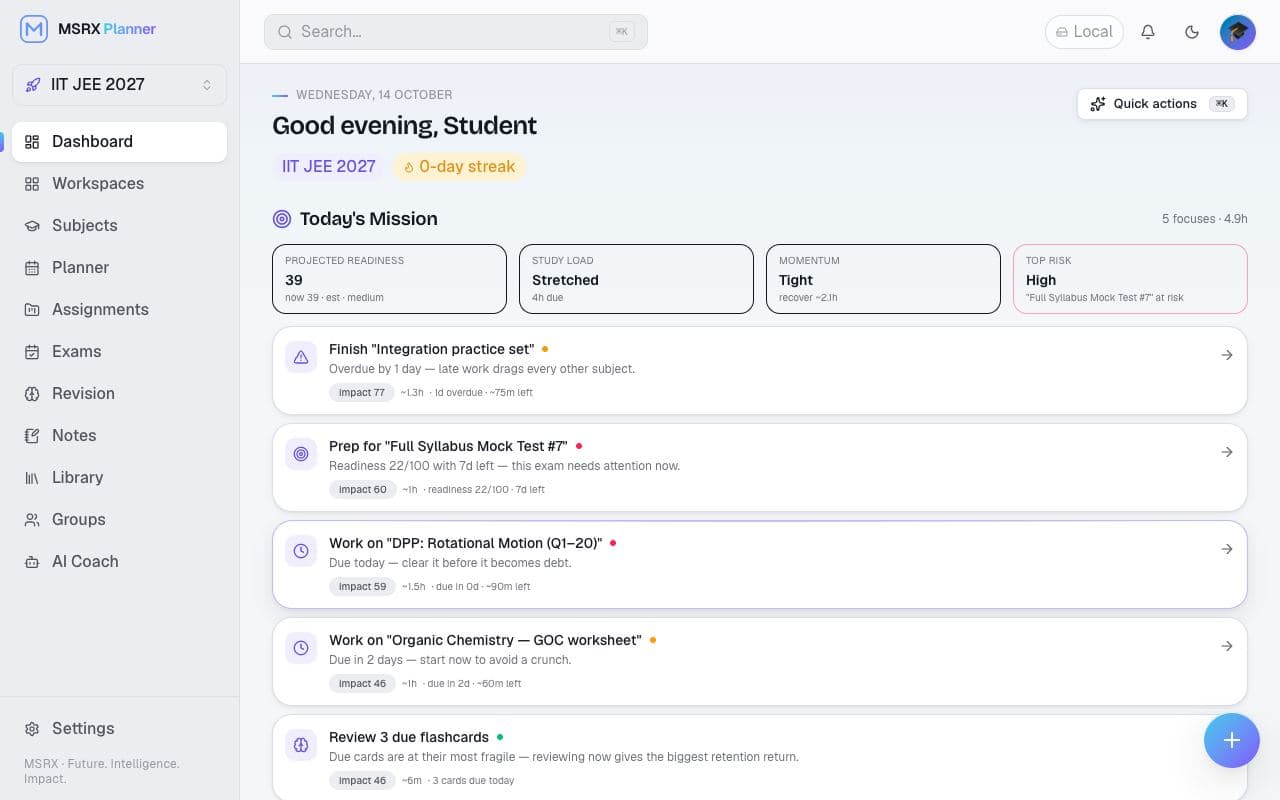
- Read the four tiles: readiness, study load, momentum, top risk.
- Work down the list from the top. The ranking is the point.
- Press ⌘K or Ctrl K for quick actions and search across everything.
Planner: put work on the clock
Switch between Agenda, Day, Week and Month. Anything overdue is shown first, then today, tomorrow and later this week.
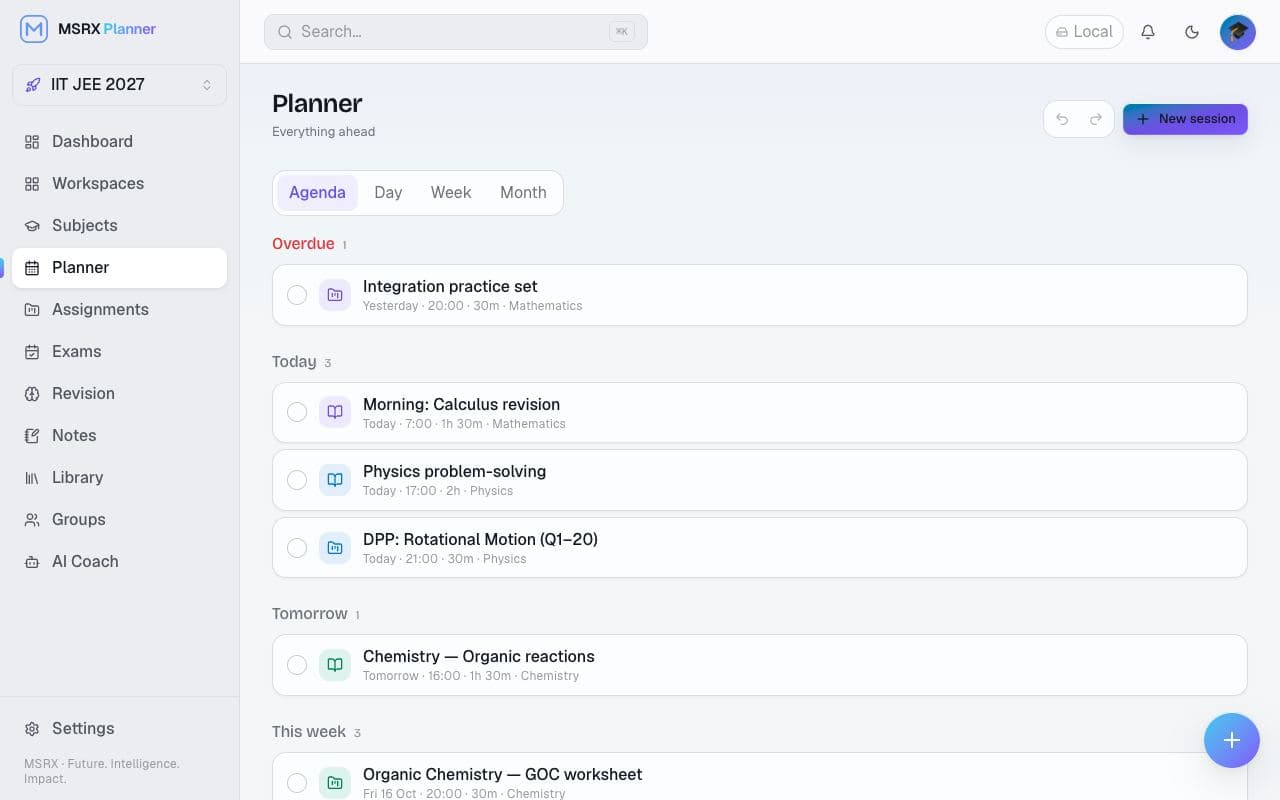
- Tap New session, name it, choose a subject, a start time and a length.
- Tick the circle when a session is done. It is marked complete and stops showing as due.
- Use Week to spot a day that is too full and move things before it becomes a problem.
Revision: remember what you studied
Turn facts, formulas and definitions into cards. The app shows each card again just before you would forget it, so you spend time on what is slipping instead of re-reading what you already know.
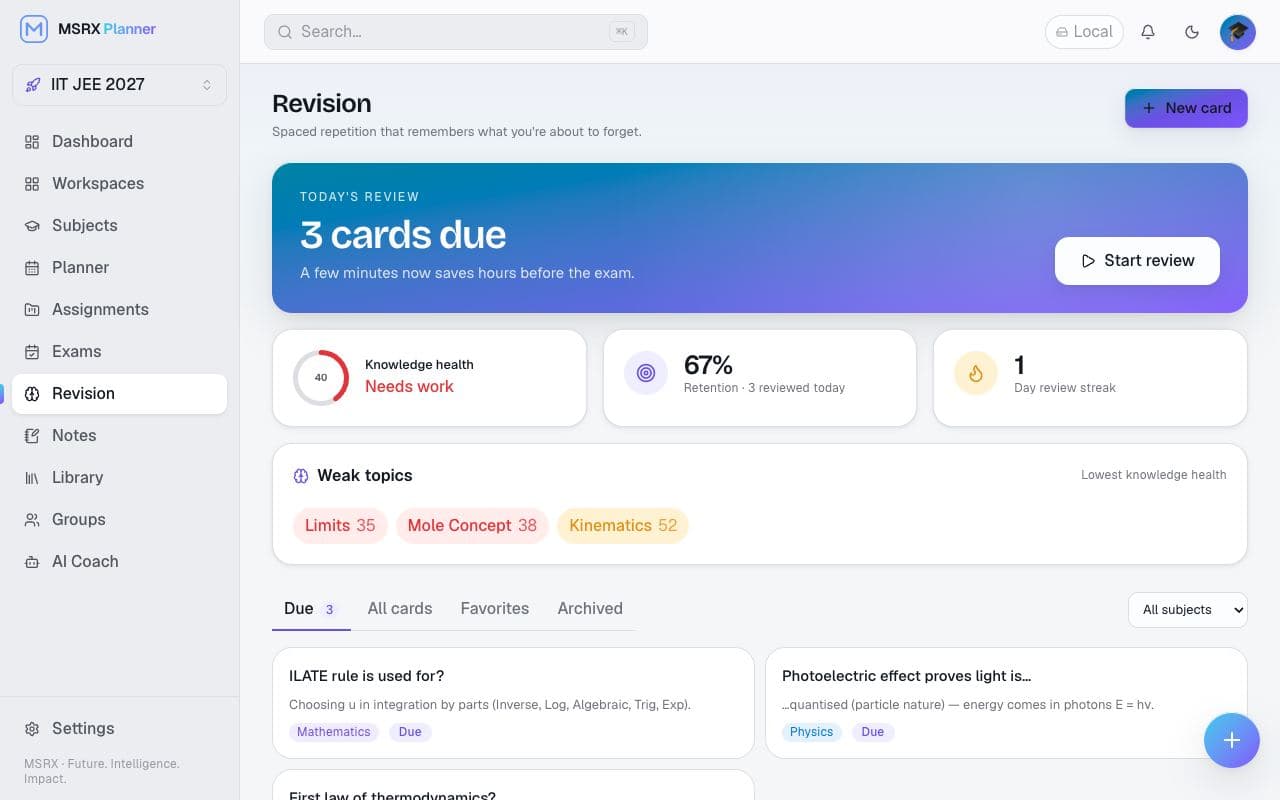
- Tap New card, write the question and the answer.
- Tap Start review. Press Space to reveal the answer.
- Grade yourself honestly with keys 1 to 4. Honest grades make the schedule work.
- The “Weak topics” strip shows where to focus next.
Notes: write it once, find it fast
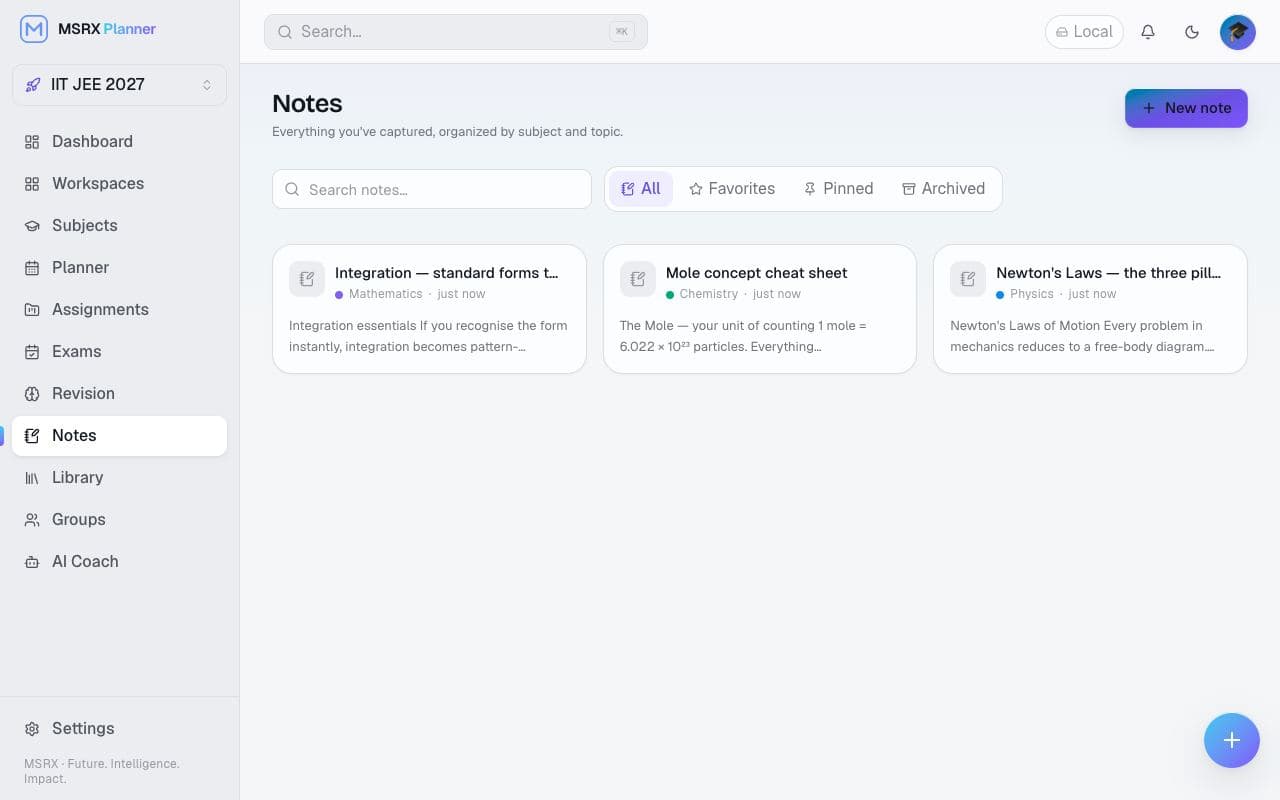
- Tap New note. Choose the subject and topic it belongs to.
- Write. Notes save as you type, including offline.
- Pin or favourite the ones you reread. Search finds any word across all notes.
Exams: a runway for every sitting
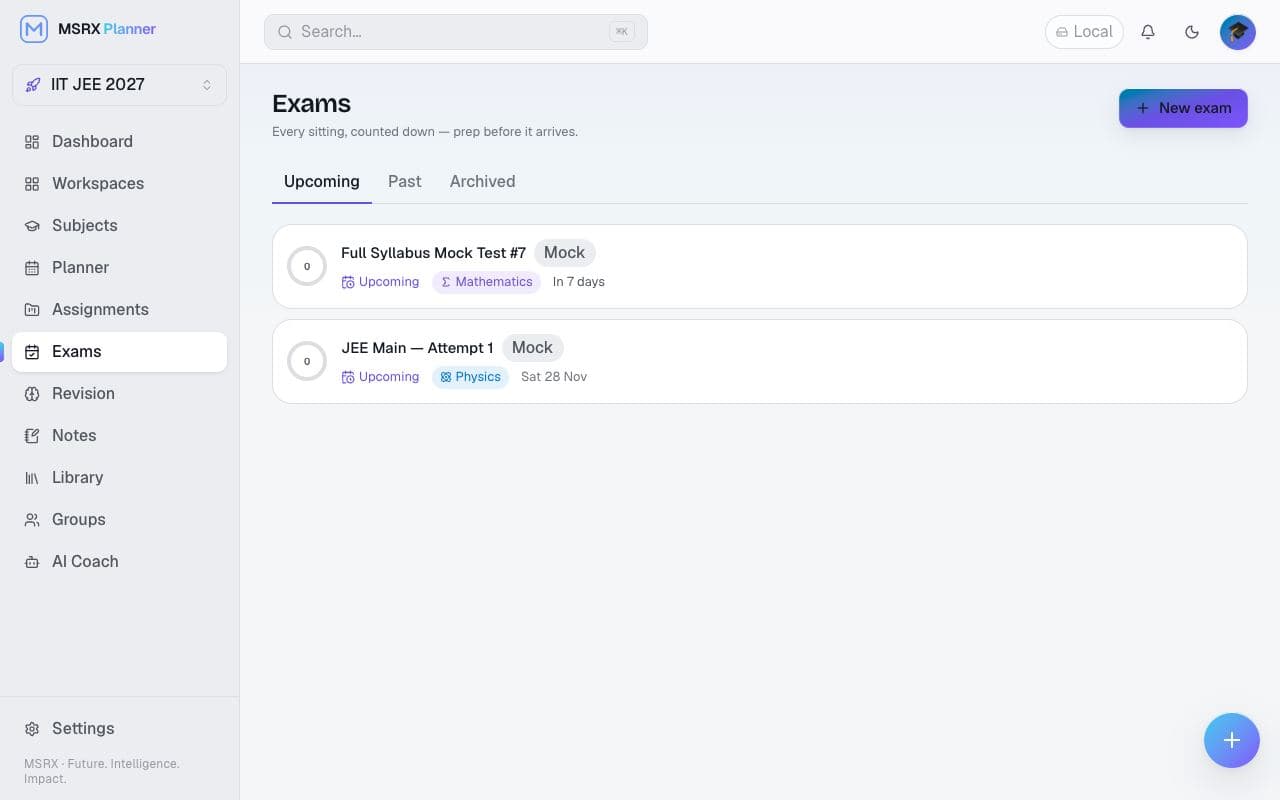
- Tap New exam. Add the title, date and the subjects it covers.
- Open it to see syllabus coverage and readiness. Readiness is an estimate from your own activity, not a prediction.
- Exam days also feed the dashboard, so the closest exam gets attention first.
Subjects: your map of the syllabus
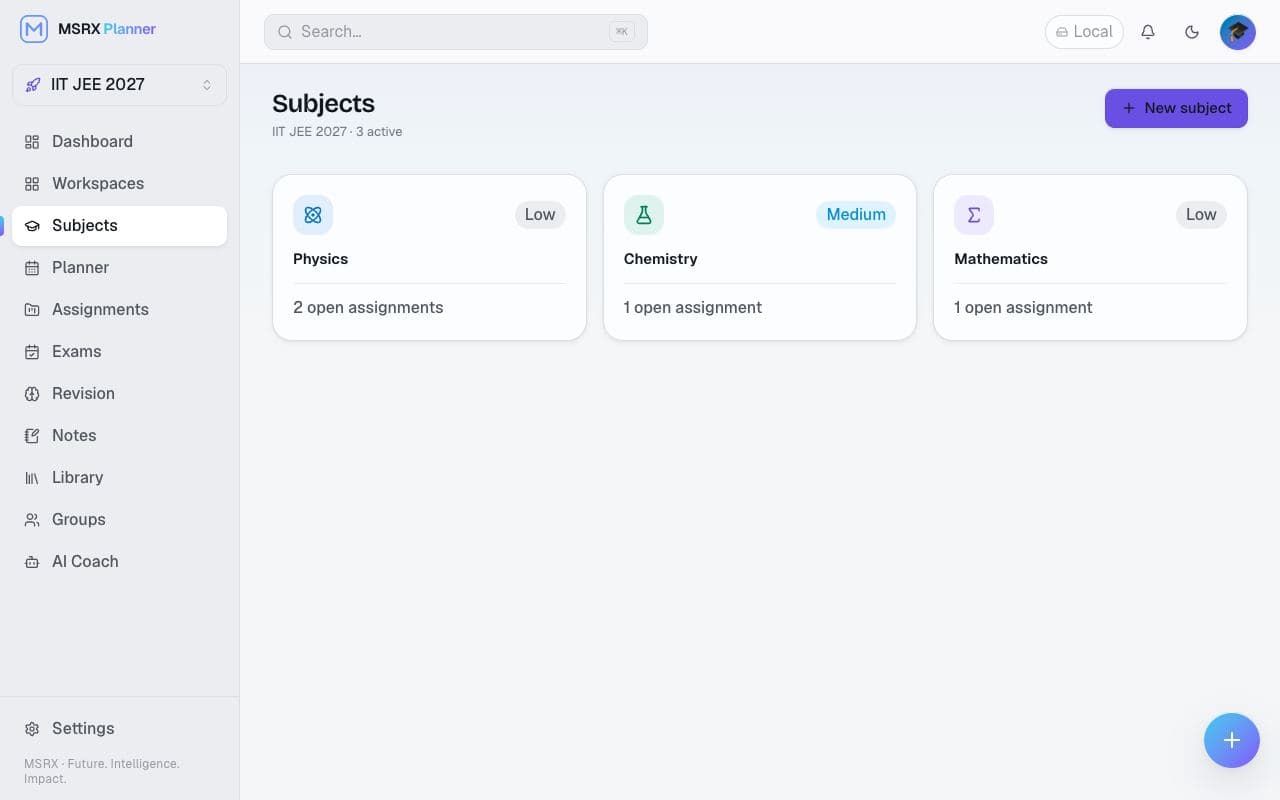
Each card shows how many assignments are still open. Tap a subject to see its units, topics, notes and plans.
AI Coach: a study partner, not an answer key
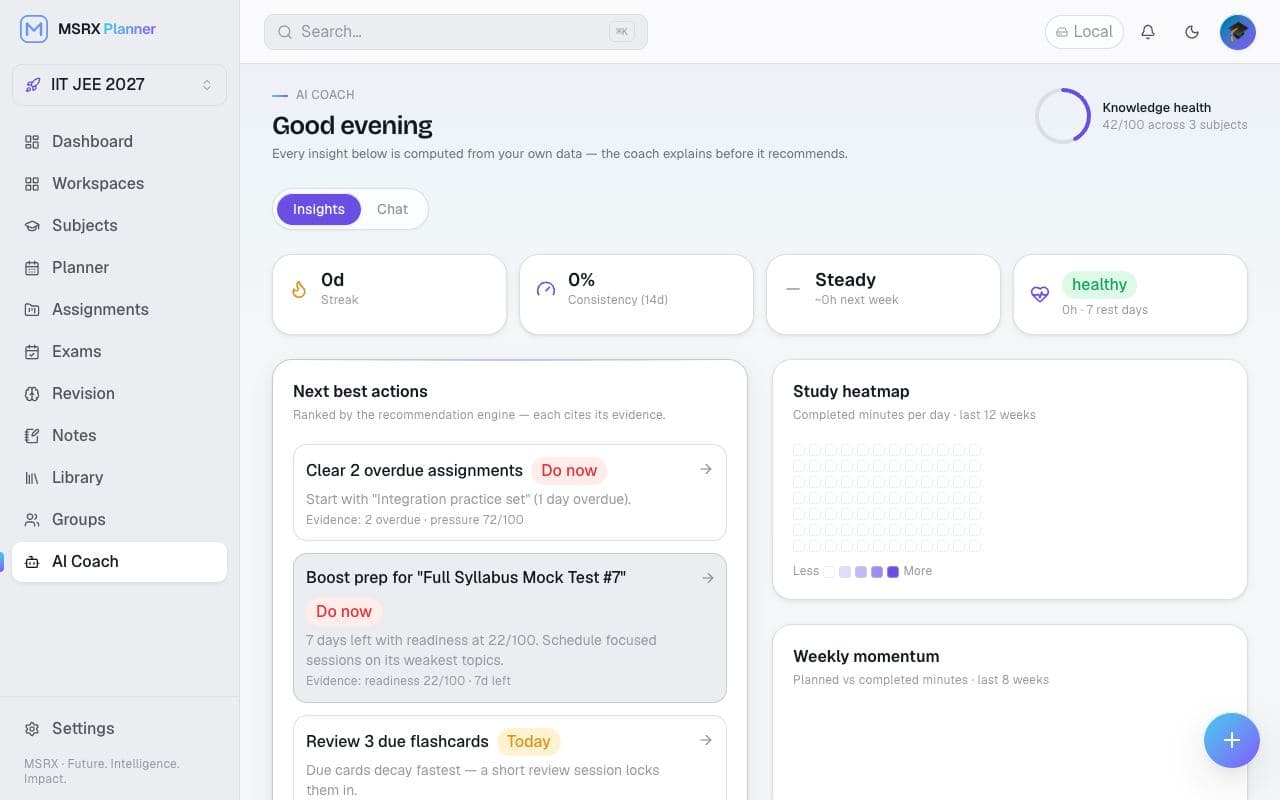
- Open AI Coach. Insights are computed from your own activity on your device. No AI is used for those.
- Tap Chat to ask for a plan, a summary or an explanation.
- Always check what it says. The AI can be wrong and sounds sure when it is. It is a draft to verify against your textbook or teacher, not advice. It never changes your data.
- Privacy: it receives a small summary and your question, not your files. Exact list in the Privacy Policy.
On your phone
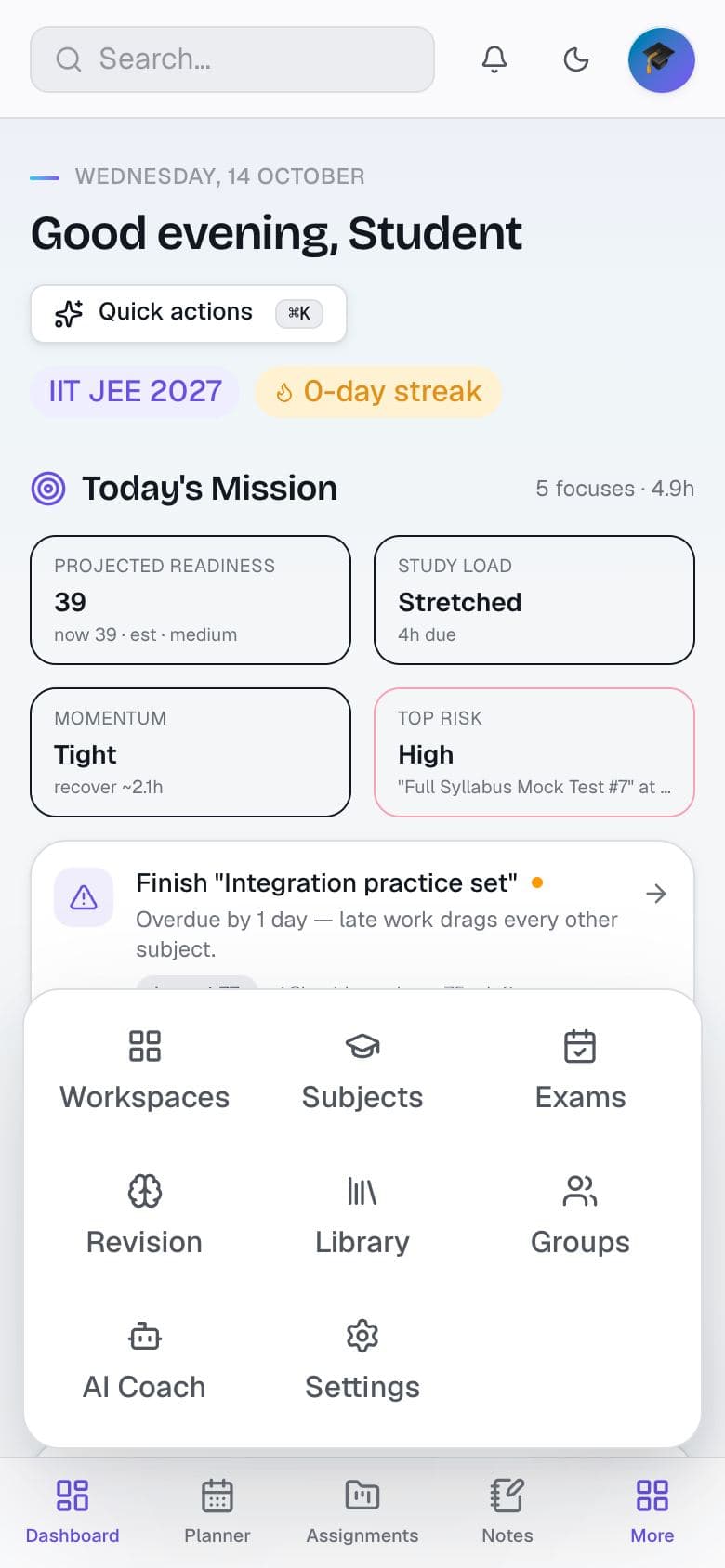
The bottom bar has your four daily screens. Tap More for Revision, Exams, AI Coach, Subjects, Groups, Library and Settings. On iPhone use Share → Add to Home Screen, on Android the browser menu → Install app, to open it like an app.
Study groups
- Open Groups → New room and name it.
- Share the invite code with friends. Codes can expire and you can revoke them.
- Share a note, deck or plan into the room. Members see it; you can remove it any time.
Only share what you are comfortable with others copying, and only material you have the right to share.
Sync, offline and backup
The pill at the top shows Local, Syncing, Synced or Offline. Edits made offline wait in a queue and send themselves when you are back online, so losing signal never loses work.
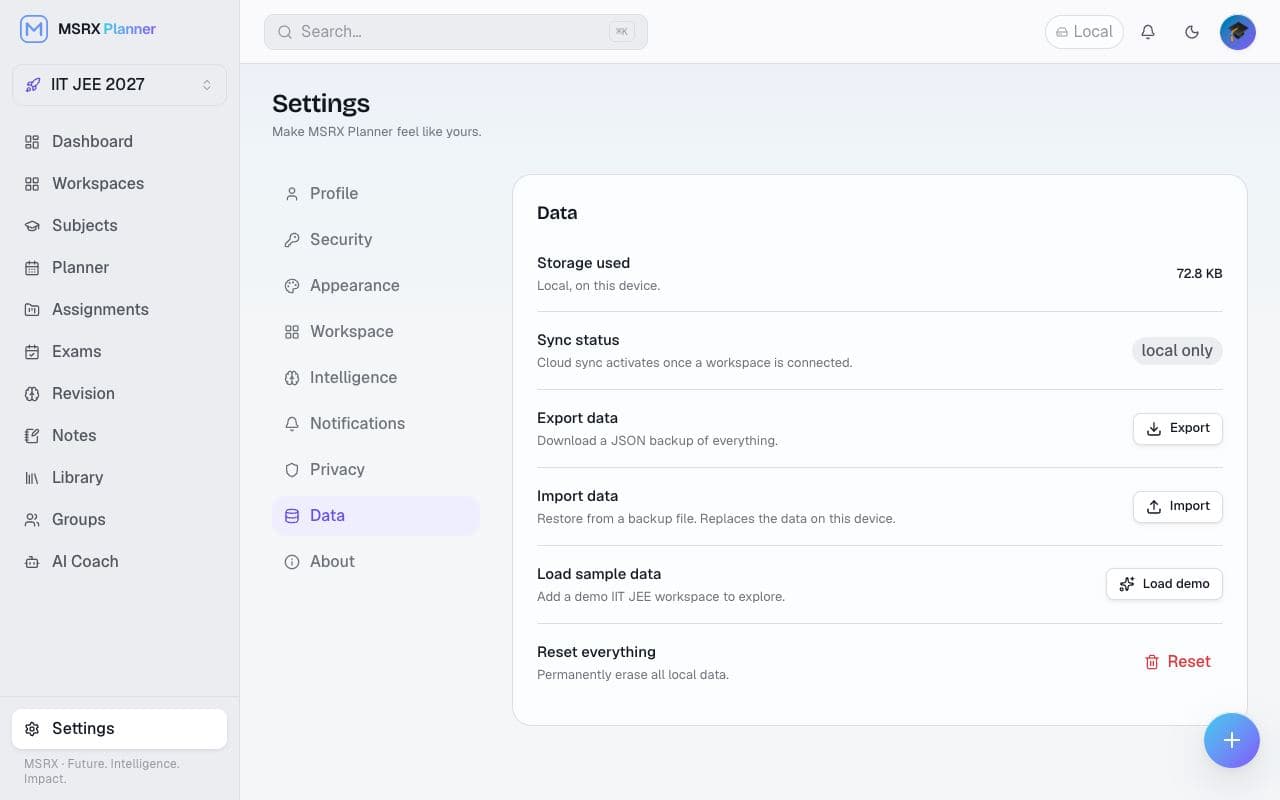
- Back up: Settings → Data → Export saves one JSON file. Do this before exams and before changing phone. It is the one copy we can promise you will keep.
- Restore: Settings → Data → Import. This replaces what is on this device.
- Delete your account: Settings → Data → Delete account (shown when signed in). Permanent. See Data Deletion.
Settings worth a minute
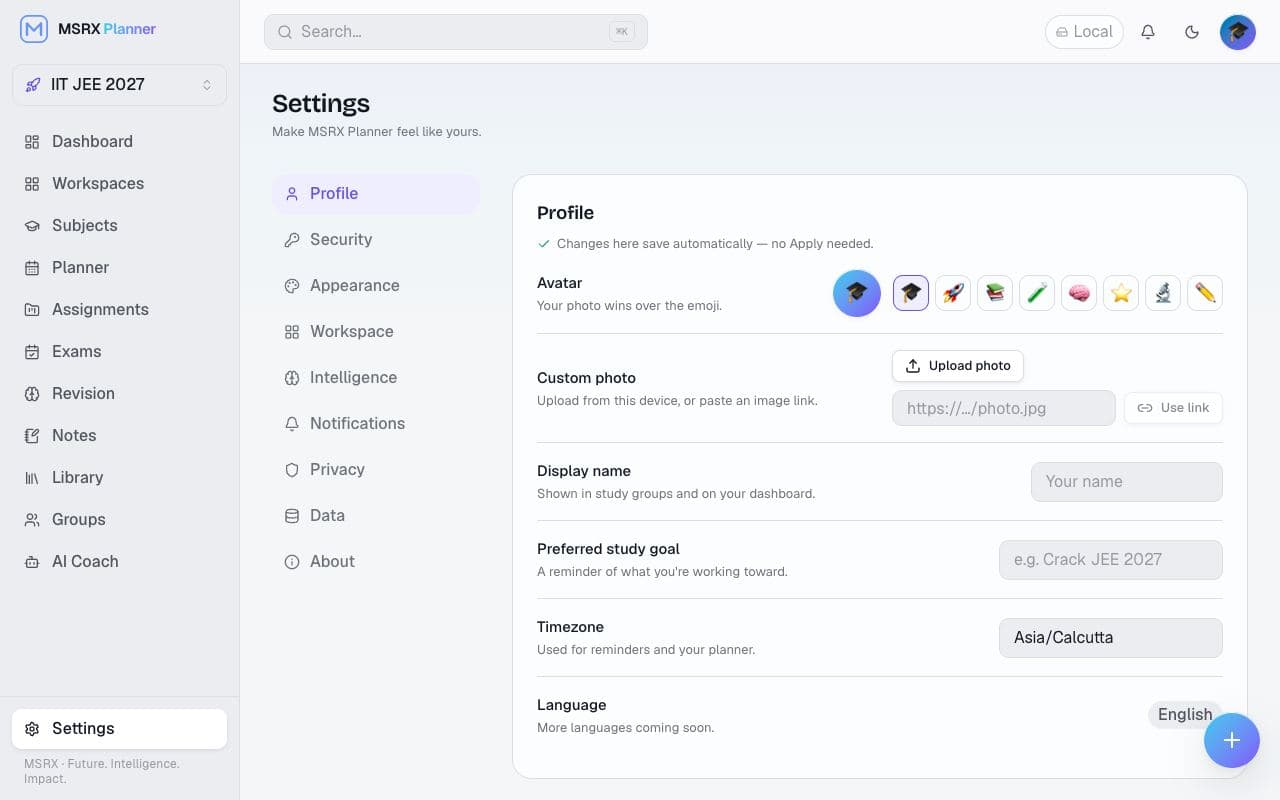
- Appearance: light or dark theme, accent colour and reduced motion.
- Notifications: choose which reminders you want.
- Privacy: your controls and links to these policies.
If something goes wrong
- Not syncing? Check the pill. If it says Offline, reconnect and wait a moment. Your work is already saved on the device.
- Signed out suddenly? Sign in again. Nothing is lost.
- AI not answering? It is optional and can be busy. The rest of the app is unaffected.
- Still stuck? Export a backup first, then email mrinalsinghraja@gmail.com with what you did and what you saw.
Good to know
- MSRX Planner is a study tool. It does not predict or improve exam results and its AI is not professional or educational advice.
- During Early Access things change and can break. Keep your own backups.
- Read the Terms, Privacy Policy and How MSRX Planner works.